Breaking Up with Google #2 — The Gmail purge
This article is part of the “Breaking Up With Google” series, an experiment in untangling myself from Google’s ecosystem — one service at a time. Visit the tag #breaking-up-with-google for more.
In the first article I realized my biggest priority to get out of Google was to get rid of Gmail, and I have wanted to do this for several years already, but a few things always felt like too much to handle and got in the way, particularly:
- My huge e-mail archive
- All the places I would have to update my e-mail as the credential for login and/or to receive communications.
Sure one could just set-up an auto redirect of e-mails from the old address to the new one and forget it1, which is what a lot of services offer to configure automatically to lure you, but that just sweeps the problem under the rug. I set forth to understand the size of the first problem then.
Cleaning up my archive
It’s been at least 20 years since I created my account2 and, incredibly, e-mail hasn’t changed much since then. There was the advent and downfall of Inbox by Gmail for me and the fact that most people now read their messages on their phones, rather than on a computer, but in terms of interface it remains roughly the same, with the same dominant players and a notable improvement in filtering spam.
At some point Gmail introduced tabs to categorize e-mails, though for some reason I turned them off, never looked back and resorted instead to my labels3, which categorized everything: promotional e-mails, university news, travel confirmations, purchase receipts and so on. All in all, there was so much archive that I kinda of saw Gmail as a hoarder dragon with me trying to get away:

AI-generated image using ChatGPT with a prompt akin to “A dragon, mimicking the kind of common knowledge that dragons are hoarders of treasure, but in this case, it’s of e-mail. The dragon is prismatic, like the ones described in D&D, but instead of single color, it is multi-colored patterned with the Google colors and in front of it there is a Bilbo Baggins-like nerd with beard and turtle-patterned glasses running from him and his pile of e-mails”
Anyway, I decided to start the purge because I was rapidly approaching my total Google storage quota and though Gmail was far from being the biggest villain in terms of space hogging, it sounded like the perfect excuse to finally do it. At the time it was taking 5.5 GB of my storage spread over 30,000 e-mails and if I combed through each of them in 2s, it would take me over 16 hours to going through them all. It was too much4, and still it wasn’t realistic: opening, skimming and taking action in 2s, were it to be 5s instead, it would eat up almost 2 entire days, so I needed another approach.
Step 1: Google One Storage Manager
On its Storage Manager, Google offers a “Clean up suggested items”, which for Gmail, shows you what are your e-mails with the largest attachments: larger than 20MB, between 10MB and 20MB or smaller than 10MB. I started from there and I quickly got down to 3GB by deleting not more than 100 items, from there though it’s not the greatest interface to continue grinding, as I was left with 14 “large” e-mails taking 130MB and was left alone to find the takers of the remaining 2.9GB.
I can think of a couple reasons why Google doesn’t make it easier to manage your mailbox:
- The tool does help you clean-up the bulk quickly, a good tradeoff.
- It earns more if you give up and just beef up your Google One plan.
- It likely isn’t worth investing in Gmail anymore, as a kind of stable commodity.
Therefore I needed other strategies to keep moving.
Step 2: Manually scouring the mailbox
I then switched to go through the e-mails guided by my labels. Starting with “promotions”, I would go to its last page, select all and take a quick glance at their titles, unchecking the ones I wanted to keep. It was working, but as the pages went by, there were more and more messages I had to deselect to keep, and as each page only showed up to 50 mails having to uncheck 10 of them would mean undoing 20% of the check all every page, with potential to grow, so it wouldn’t scale unless they were 99% junk e-mail.
Then I figured it would be better to stop deleting at every page and start accumulating the selections in bigger batches5 which seemed to be fair enough, as I had over two thousand e-mails triaged with 2,000 marked for deletion, but then something happened:
I clicked on the wrong place and all of the selections were gone.
It almost physically hurt, tens of minutes of work vanished and I was mourning having to do it again so I’d rather change tactics: scan a few pages looking at the most common sender, search for them, clean them up and repeat, which would make sure I was cleaning up the “most prevalent”. This made it more manageable to decide what to keep or not, as within a given sender there was more predictability over the content and with primarily the top 10 most common senders, I axed another ten thousand e-mails. Here are them in case you’re curious:
- Amazon - 2,000
- TED - 1,421
- TeeNOW - 800
- Centauro - 809
- Nubank - 750
- Airbnb - 696
- Uber - 533
- Kickstarter - 452
- Tripadvisor - 417
- Humble Bundle - 415
The rest was a lot more boring, rinsing and repeating until I was left with one thousand e-mails in total (down from 30,000!), and you know what the size of my inbox was at this point? 2.5 GB 🤡
Step 3: Fine-tooth comb
I was appalled, how come I had deleted 97% of my mails after having cleaned up most of the ones larger than 10MB and still was halfway there in terms of storage? At this point it was a manageable amount of e-mails, at least, so I decided to take the long route and look at each of them individually.
Google does not show any size data on Gmail even though you can search giving a size constraint, thus I needed another way to inspect them. I decided to download everything using Google Takeout, a service that allows you to get any and all data Google has about you so you can own and take it away. It delivers you a zip with one or more files within, depending on what you requested, how much data there is and how you decided to split it6. In my case they were 2 files: a tiny JSON with my mail settings and a 2.55GB .MBOX file with all my mail.
Having never seen the .mbox format before, my first thought was to open it in Visual Studio Code, which is what I do every time I see a new extension, and this is what I got:
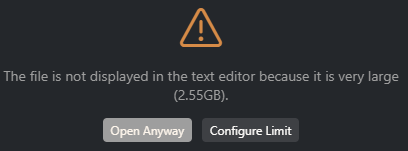
Surely you don’t want to open a 2.55GB file?
“Open anyway”, we didn’t come all this way to stop here VSCode!
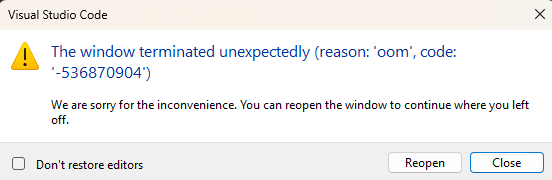
Yay, a crash!
I tried a few other editors and they also refused7, this was not going to work, upon searching most of the suggestions to read an .MBOX file were to either use Thunderbird, Mozilla’s offline e-mail client, or an online service. I didn’t want to use the former because I thought it would be more complicated than I needed to, after all it is a mail client and I’m not migrating, yet. The latter because being online you never know what they might be doing with my data. Eventually I found an open source alternative MBox Viewer:
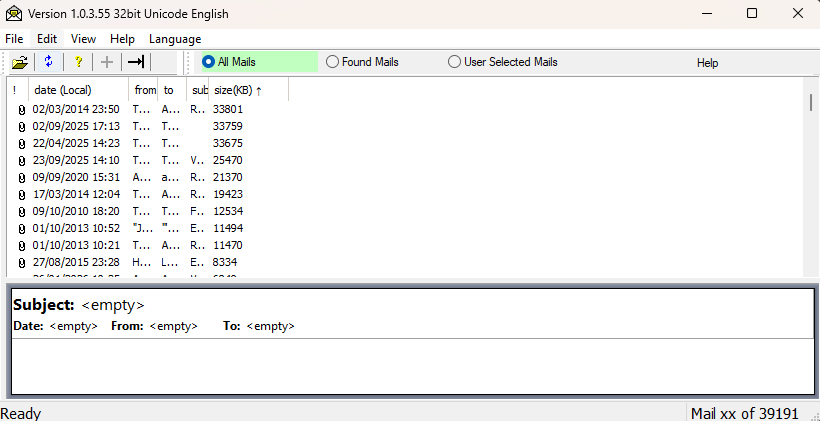
A collapsed view of the MBox Viewer showing my e-mail archive
From the get-go you can see several interesting things:
- It allows me to sort all mails by any of the columns, which:
- Could have made my step 2 easier if I sorted by “from”
- Empowers me to sort by size and find the leftover big mails!
- It shows “Mail xx of 39191”, but I thought I had wiped it down to 1 thousand !?
Turns out the takeout service exports everything including the spam folder, which I had empty, and the trash, which still contained over 30k e-mails, as Gmail only purges messages that have been in the trash for longer than 30 days. I clicked on the almighty “empty trash now” button and after a few minutes and two attempts8 it was empty and to my surprise, Gmail was now only taking 0.23GB of my storage! I guess all the cleaning of step 1 was effective because those were files too large for the trash to handle, but not the ones in step 2, it’s a bit of a relief that the latter was not in vain.
Still I wanted to keep cleaning up my mail, because if I’m to take it anywhere on the next step, I don’t want to carry useless e-mails, even if they don’t take up space, so I went to Google Takeout for another go. I tried opening it on VSCode for fun and it worked9, even so I kept on using MBox Viewer where it said there were 2366 mails, roughly twice what I was seeing listed on Gmail. Luckily it has a feature to “Rebuild Gmail labels”, so you can see them categorized in the same way on the app, and here’s what this number was broken down:
| Category | Number of Mails |
|---|---|
| Inbox | 21 |
| Archived | 1360 |
| Sent | 562 |
| Chat | 805 |
These are counting each mail in a thread separately, which is where part of the divergence might come from. Also, the numbers add up to more than the total, as one mail can be both a chat and archived.
My biggest struggle now was to decide whether I would part ways with nostalgia or not: before starting the cleanup a lot of my archived e-mails were either useless (promotions), useful (like purchase receipts)10 or potentially useful: conversation history with friends and family which might have something I wanted to remember at some point or not. Deleting the latter is a difficult action, because it is the kind of thing that gets you thinking stuff like:
Wouldn’t it be fun to read these 20 years from now?
Conversely, they have been there for 10 years and I haven’t read them ever since. In the end, I decided to delete all my chats and some more of the archived e-mails, keeping only the threads with family and friends, they’re neatly grouped if I ever think about deleting them.
Wrap-up
I feel a peace of mind of finally having done this clean-up and preparing the groundwork for any migration to happen and I’m satisfied settling at 0.2GB total space as this would be small enough to migrate to almost any of the free e-mail services out there. Out of complete chance, when I was finishing this article up, I received this e-mail:

Farewell my Yahoo e-mail
Seems like Yahoo decided to delete my very inactive Yahoo e-mail address and I’m not out of a backup e-mail, kind of like compelling me to keep this series at a very active pace 😊.
Which is what I intend to do at first to not overcommit. ↩︎
Likely more, since I fetched this date from YouTube’s “joined date”, but that only goes as far as its acquisition by Google. ↩︎
Or folders, depending on what the service you use calls them. ↩︎
Even if I was very unoccupied at the time. ↩︎
Maybe when the number of “mails to keep” topped 50? ↩︎
You can choose to split the content in files of 1, 2, 4, 10 and 50GB. ↩︎
Antigravity (which is essentially VSCode, so warned and crashed in the same way) and Windows Notepad, which refused to open without a way to override. ↩︎
On the first try it bailed out from deleting everything and still had 5k e-mails left, but on the second it finished successfully. ↩︎
A file with 3,543,445 lines! I guess the previous one crashed because there was an integer overflow somewhere (specially given the negative number in the crash message), but 10x this number of lines is nowhere close to the infamous INT_MAX, so it must be somewhere else. ↩︎
For which I needed one just after deleting and I couldn’t tell whether I had misdeleted or if it was never there. ↩︎